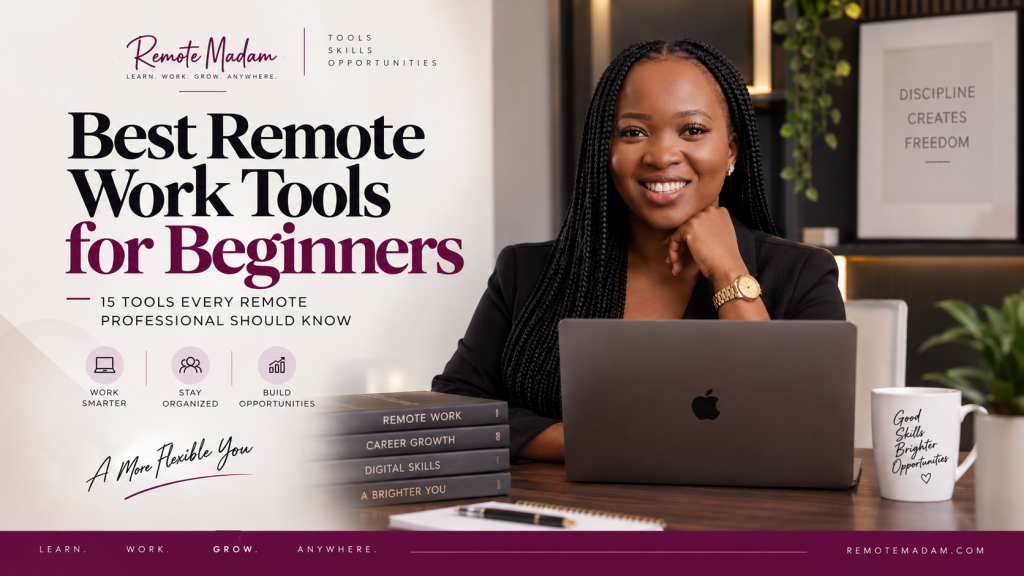
If you are new to remote work, the number of software tools mentioned in job descriptions can be overwhelming.
One job asks for Asana. Another wants Monday.com. A virtual assistant role mentions Trello, Canva and Google Workspace. Customer support jobs may require Zendesk, while another company uses completely different software.
So, where do you start?
You do not need to learn every tool before applying for remote jobs. What matters more is understanding how these tools are used to communicate, organize work, manage projects and deliver results.
When I started working remotely in 2018, I did not have everything figured out. I moved from one client to another, worked through difficult periods and, at one point, had to work with a poor laptop. It was not a perfectly organized beginning. I simply started with what I had and kept learning as I went.
That experience shaped how I approach remote-work training today. The goal is not to collect software names for your CV. The goal is to become comfortable using the tools that help remote professionals actually get work done.
Table of Contents
- What Are Remote Work Tools?
- Why Remote Work Tools Matter
- 15 Remote Work Tools Beginners Should Know
- Asana
- Monday.com
- Trello
- Slack
- Zendesk
- Canva
- Calendly
- Google Workspace
- Notion
- ClickUp
- Zoom
- Microsoft Teams
- Loom
- HighLevel
- Google Sheets
- What Should a Beginner Learn First?
- A 30-Day Practical Learning Plan
- 7 Mistakes Beginners Make When Learning Remote Work Tools
- How to Build Practical Experience Without a Remote Job
- Remote Madam and Remote Work Toolkit Mastery
- Frequently Asked Questions About Remote Work Tools
- Conclusion: Start Small, Practice, and Build Your Remote Work Skills
What Are Remote Work Tools?
Remote work tools are digital platforms that help professionals communicate, organize tasks, manage projects, collaborate with teams, support customers, schedule meetings, create content and manage information.
Think of them as the systems that help work move from one person to another without everyone needing to be in the same office.
Some tools are built for specific jobs. Asana, Monday.com and Trello help teams manage projects and tasks. Slack and Microsoft Teams support communication. Zendesk is built around customer support, while Calendly makes scheduling easier. Canva helps with visual content, and Google Workspace covers everyday work such as email, documents, spreadsheets and file management.
The important thing for a beginner is not to memorize every feature inside every platform. It is to understand how the tool is used to get work done.
For example, knowing how to create an Asana task is useful. Understanding how to receive an assignment, organize the task, set a deadline, communicate an update and mark the work complete is much more valuable.
That is the difference between simply knowing software and being able to work with it.
Why Remote Work Tools Matter
Remote teams need systems because people cannot simply walk over to a colleague’s desk whenever they need information.
A project-management platform can show what needs to be done. Slack or Microsoft Teams can keep conversations organized. Google Drive can make documents accessible, while Calendly can reduce unnecessary back-and-forth when scheduling meetings.
Different companies use different software, so you should not assume that every remote employer uses the same tools. One company may use Asana while another uses Monday.com. One team may use Slack while another uses Microsoft Teams.
What matters is understanding the workflow behind the software.
Employers and clients often need people who can work comfortably inside digital systems, follow processes, communicate clearly and adapt when a company uses a different platform.
That is why practical experience matters. Saying “I know Asana” is useful, but being able to show that you created a project, assigned tasks, added deadlines and tracked progress gives a much clearer picture of what you can actually do.
15 Remote Work Tools Beginners Should Know

1. Asana
Best for: Project and task management.
Asana helps teams organize projects, assign tasks, set deadlines and track progress. For a beginner, focus on creating tasks, assigning them, setting due dates, adding subtasks and communicating updates.
A virtual assistant might use Asana to manage a client’s weekly tasks, while a project coordinator could use it to track a larger project from planning to completion.
Practice: Create a mock website-launch project with five tasks, deadlines and clear statuses.
2. Monday.com
Best for: Visual workflows and operations.
Monday.com uses boards to organize tasks, responsibilities, deadlines and progress. It is useful for learning how a team can turn a process into a clear visual workflow.
A project coordinator might use it to track client projects, while an operations assistant could use it to monitor recurring business tasks.
Practice: Build a client-onboarding board with stages such as New Client, Information Needed, Setup, In Progress and Completed.

3. Trello
Best for: Simple visual task management.
Trello uses boards, lists and cards to help people organize work visually. For beginners, it is one of the easiest ways to understand how tasks move through a workflow.
A virtual assistant could use Trello to manage a content calendar, moving tasks from Ideas to Drafting, Review and Published.
Practice: Create a Trello board for a fictional business and move five tasks from “To Do” to “Completed.”
4. Slack
Best for: Remote team communication.
Slack helps teams organize conversations into channels instead of keeping every discussion in one long chat. Beginners should learn channels, threads, mentions, direct messages and file sharing.
It is also a good place to practice professional remote communication — knowing when to send a message, when to reply in a thread and how to give a clear update.
Practice: Create a mock Slack workspace with channels for General, Operations, Marketing and Customer Support.
5. Zendesk
Best for: Customer support.
Zendesk helps support teams manage customer requests as tickets, assign them, respond to customers and track issues until they are resolved.
If you want to work in customer support, focus first on understanding tickets, statuses, assignments, internal notes and customer replies.
Practice: Create five sample support tickets covering a refund, delivery delay, damaged product, order change and general customer question.

6. Canva
Best for: Simple professional design and content creation.
Canva is useful for creating social media graphics, presentations, documents and other visual content without needing to be a professional graphic designer.
Beginners should focus on templates, typography, spacing, brand colors, images, resizing and exporting.
Practice: Create five consistent social media posts for a fictional business.
7. Calendly
Best for: Scheduling meetings.
Calendly makes it easier for people to book available meeting times without going back and forth over email or chat.
Beginners should learn how to set availability, create an event type, connect a calendar and manage booking details.
Practice: Create a mock 30-minute consultation booking page.

8. Google Workspace
Best for: Everyday remote administration and collaboration.
Google Workspace brings together tools such as Gmail, Drive, Docs, Sheets, Calendar and Meet. These tools are useful across many remote roles, from virtual assistance to operations and customer support.
Start with file organization, document collaboration, basic spreadsheets, calendar management and professional email organization.
Practice: Create a fictional client folder containing a task tracker, meeting notes, client information and a calendar.
9. Notion
Best for: Documentation and knowledge management.
Notion can be used for internal documentation, meeting notes, project information, databases and knowledge bases.
Beginners should start with pages, databases, properties, templates and simple views instead of trying to build a complicated workspace immediately.
Practice: Build a fictional client knowledge hub containing SOPs, meeting notes, tasks and FAQs.
10. ClickUp
Best for: Broader work management.
ClickUp combines task management with other work-management features, making it useful for teams with more complex workflows.
Start by learning tasks, statuses, assignees, due dates, comments and basic views.
Practice: Build a mock online-course launch with tasks, deadlines and different project statuses.
11. Zoom
Best for: Video meetings and client calls.
Remote professionals need to know more than how to join a meeting. Learn how to schedule meetings, share your screen, manage your microphone, use chat and present information clearly.
Practice: Schedule a mock client meeting and present a short project update.
12. Microsoft Teams
Best for: Communication and collaboration.
Microsoft Teams provides chat, meetings, channels and file collaboration. It is especially useful for professionals working with organizations that use Microsoft 365.
Practice: Create a fictional team structure with channels for Operations, Marketing, Customer Support and General.

13. Loom
Best for: Screen recordings and asynchronous communication.
Loom lets you record your screen and explain a process without requiring another meeting. It can be useful for walkthroughs, demonstrations, feedback and training.
Practice: Record a three-minute walkthrough showing someone how to organize a Google Drive folder.

14. HighLevel
Best for: CRM, sales pipelines, marketing automation and client management.
HighLevel combines CRM and marketing tools in one platform, allowing businesses to manage contacts, leads, opportunities, conversations, appointments and sales pipelines.
For beginners, focus on understanding contacts, opportunities, pipelines, conversations, appointments and basic automations. This is especially useful if you want to work with agencies, service businesses or clients that use HighLevel to manage their customer journey.
Practice: Create a fictional business in HighLevel, add ten leads, organize them into different pipeline stages and set up a simple follow-up workflow.
15. Google Sheets
Best for: Tracking, reporting and organizing information.
Spreadsheets remain extremely useful in remote work. You don’t need advanced data-analysis skills to start. Learn sorting, filtering, basic formulas, formatting and simple trackers.
Practice: Create a 20-task operations tracker containing task name, owner, status, priority and deadline.
What Should a Beginner Learn First?
You do not need to master all 15 tools at once. Trying to learn everything simultaneously can leave you with shallow knowledge of many platforms without being confident in any of them.
A better approach is to build your skills in stages.
Stage 1 — Communication
Start with Slack or Microsoft Teams. Learn how channels, threads, direct messages and professional updates work.
Stage 2 — Project Management
Choose one tool such as Asana, Trello, Monday.com or ClickUp. Focus on tasks, deadlines, assignments, statuses and workflows. Once you understand these concepts, learning another project-management platform becomes much easier.
Stage 3 — Productivity
Become comfortable with Google Workspace, Google Sheets and Calendly. These tools give you a practical foundation for administrative, assistant and client-facing work.
Stage 4 — Specialization
Choose tools based on the type of remote work you want to do. Customer support professionals can explore Zendesk. Content assistants can develop their Canva skills. Project coordinators can go deeper into project-management platforms.
Stage 5 — Practical Proof
Build sample projects and save screenshots of what you create. Being able to demonstrate a project you actually built is more useful than simply listing several software names on your CV.
A 30-Day Practical Learning Plan
Week 1 — Communication & Organization
Learn Slack or Microsoft Teams, Google Drive and Google Workspace basics. Practice creating folders, sharing documents and communicating professionally.
Week 2 — Project Management
Choose one platform: Asana, Monday.com, Trello or ClickUp. Build a small fictional project and practice creating tasks, assigning work, setting deadlines and updating statuses.
Week 3 — Role-Specific Tools
Choose tools based on the type of work you want to pursue. For example, customer support beginners can practice Zendesk, while content-focused beginners can spend more time in Canva.
Week 4 — Build Your Portfolio
Turn your practice into evidence. Create two or three realistic sample projects, take screenshots and organize them into a simple portfolio.
By the end of 30 days, you do not need to be an expert in every platform. You should be able to confidently explain what several remote work tools do, demonstrate practical experience and understand how they fit into a remote workflow.
7 Mistakes Beginners Make When Learning Remote Work Tools
- Trying to learn everything at once
Learning 15 tools simultaneously can become overwhelming. Start with a small group and build from there. - Focusing on features instead of workflows
Knowing where every button is does not automatically make you good at using a tool. Focus on how the software helps you complete real work. - Only watching tutorials
Tutorials can help you understand a platform, but practice is what builds confidence. Create your own projects instead of only watching someone else use the tool. - Ignoring communication skills
Remote work is not just about software. Clear messages, professional updates and good documentation are equally important. - Learning tools without a target role
The tools you need depend on the work you want to do. A customer support professional may need Zendesk, while a project coordinator may spend more time using Asana or Monday.com. - Not creating practical examples
Simply saying “I know Trello” or “I know Canva” is difficult for an employer to evaluate. Build sample projects that demonstrate what you can actually do. - Being afraid of unfamiliar software
Remote companies use different platforms. Once you understand the basic concepts behind project management, communication, CRM or collaboration tools, adapting to a new platform becomes much easier.
The goal is not to become an expert in every remote work tool. The goal is to become comfortable learning and using digital tools to solve real work problems.
How to Build Practical Experience Without a Remote Job
You do not have to wait until someone hires you before you start building experience with remote work tools.
One of the easiest ways to become more confident is to create realistic practice projects based on the type of work you want to do.
For example, if you want to become a virtual assistant, create a fictional client project in Asana or Trello. Add tasks, deadlines, priorities and notes as if you were managing real client work.
If you are interested in customer support, create sample Zendesk tickets and practice responding to different customer situations.
If you want to work in content or social media, use Canva to create a small set of branded posts and organize the content in a project-management tool.
You can also create:
- A client onboarding workflow
- A content calendar
- A customer support ticket system
- A project launch board
- A weekly task tracker
- A simple CRM pipeline
- A documented SOP or knowledge base
Save screenshots of the projects you create and organize them into a portfolio. This gives potential clients or employers something concrete to look at instead of relying only on a list of skills on your CV.
Practical experience does not always begin with a job. Sometimes, it begins with creating your own opportunity to practice.
Remote Madam and Remote Work Toolkit Mastery
If you are serious about preparing for remote work, learning individual tools is only part of the process. You also need to understand how those tools fit into real remote workflows.
That is the approach behind Remote Madam’s Remote Work Toolkit Mastery course.
The course focuses on practical tools commonly used by remote professionals, including:
- Asana
- Monday.com
- Trello
- Canva
- Zendesk
- Slack
- Calendly
- Chrome Profile Setup
Instead of simply learning what each platform does, the goal is to understand how these tools can be used to organize work, communicate with clients and teams, manage tasks and support day-to-day remote operations.
For beginners, this type of practical learning can make the transition into remote work less overwhelming. You can build familiarity with the tools before you encounter them in an actual job or client project.
If you are starting from scratch, use this article as your roadmap. Pick a few tools, practice with realistic projects and gradually build evidence of what you can do.
Learn the tools. Practice the workflows. Build the confidence to work remotely.
Frequently Asked Questions About Remote Work Tools
What are remote work tools?
Remote work tools are digital platforms that help people communicate, manage tasks, collaborate, organize information and complete work without being in the same physical location.
What are the best remote work tools for beginners?
There is no single tool that every beginner needs. A good starting point is to learn a communication tool such as Slack or Microsoft Teams, a project-management tool such as Asana, Trello or Monday.com, and everyday productivity tools such as Google Workspace and Google Sheets.
Do I need to learn all 15 remote work tools?
No. You do not need to master every tool on this list. Start with tools that match the type of remote work you want to pursue, then expand your skills as you gain experience.
Can I learn remote work tools without having a remote job?
Yes. You can create fictional projects, practice different workflows and build sample work using the tools. Screenshots and sample projects can then become part of your portfolio.
Which remote work tools should a virtual assistant learn?
Virtual assistants can benefit from tools such as Asana, Trello, Monday.com, Google Workspace, Calendly, Slack and Canva. The exact tools you need will depend on the services you provide and the systems used by your clients.
How long does it take to learn remote work tools?
The basic concepts of many tools can be learned relatively quickly, but becoming comfortable using them in real workflows takes practice. Instead of focusing on how quickly you can finish tutorials, focus on creating practical projects and repeating common tasks.
Do employers expect remote workers to know every software tool?
No. Different companies use different systems. Employers may look for familiarity with specific tools, but being able to learn and adapt to new software is also an important part of working remotely.
Conclusion: Start Small, Practice, and Build Your Remote Work Skills
You do not need to master every remote work tool before you can start pursuing remote opportunities.
Start with the tools that are most relevant to the kind of work you want to do. Learn the basics, practice with realistic projects and gradually become more comfortable working inside digital systems.
More importantly, don’t focus only on collecting software names for your CV. Focus on being able to use these tools to communicate, organize work, solve problems and support clients or teams.
Remote work skills are built through practice. The more you use these tools in realistic situations, the easier it becomes to adapt when a client or employer introduces you to a platform you have never used before.
Start with one tool. Practice it. Build something with it. Then move to the next.
That’s how you go from simply knowing about remote work tools to becoming a remote professional who can actually use them.